Back to Support

Manager Complete Guide

Everything you need to know about managing your payment gateway system.

1

Login to Manager Panel

Access your manager dashboard using your login credentials.
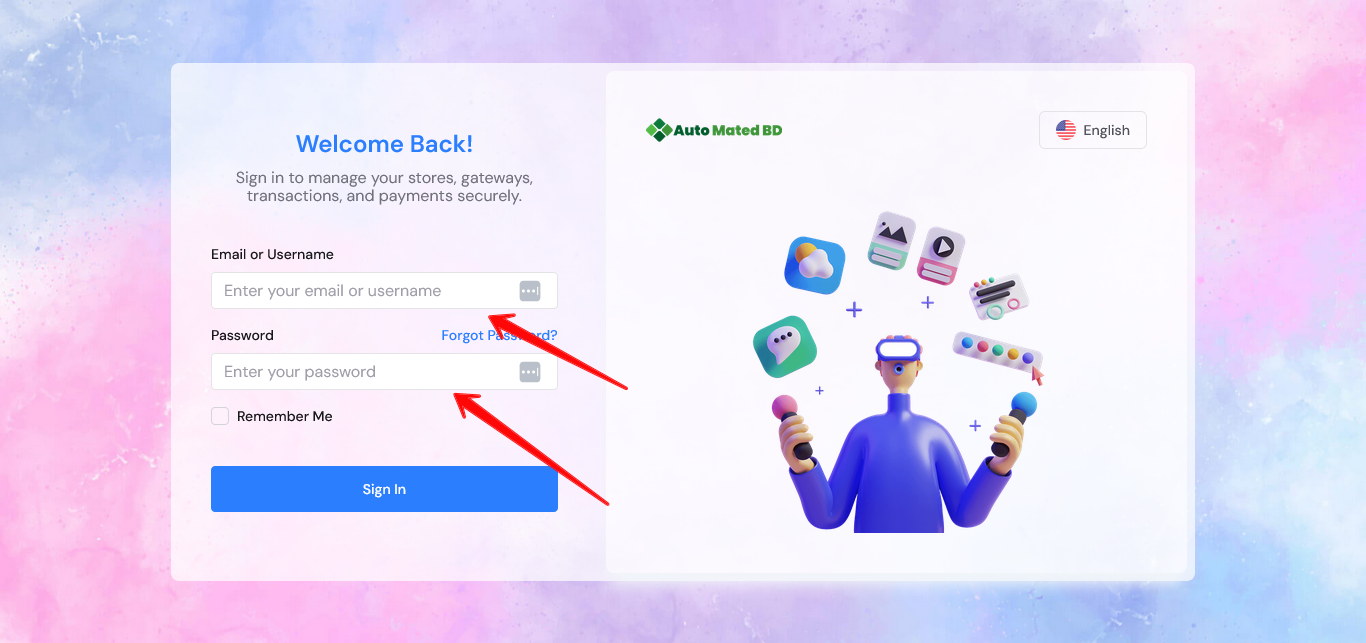
1. Go to the manager login page
Manager Login Page
2. Enter your email and password
3. Click Login to access your dashboard
2

System Configuration

2.1 Deposit Settings
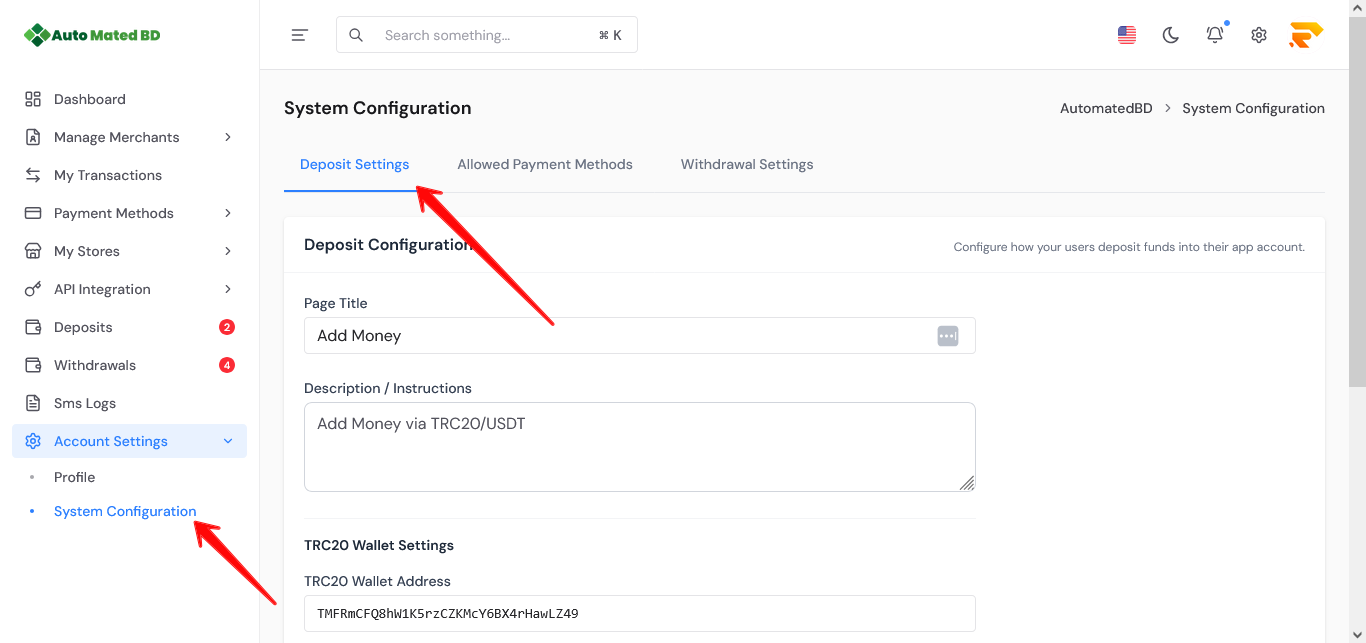
1. Go to Configuration → Deposit Settings
Deposit Settings
2. Set minimum and maximum deposit amounts
3. Configure deposit methods and requirements
4. Save the settings

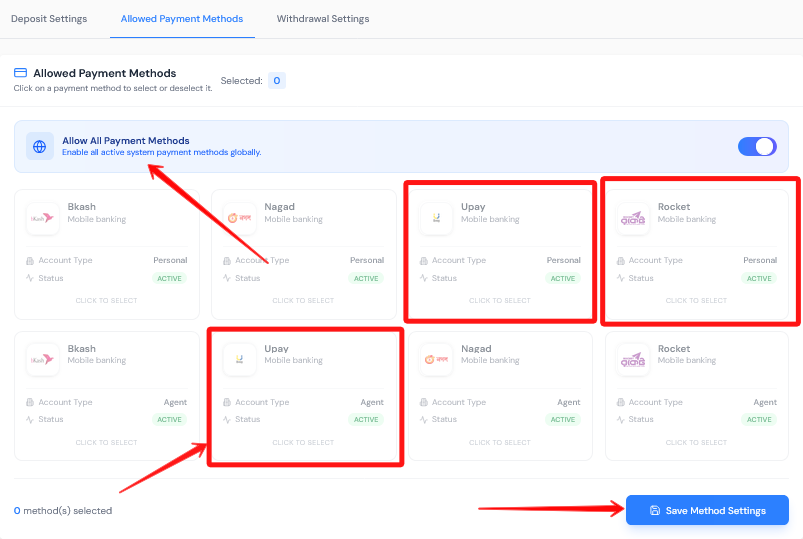
2.2 Allowed Payment Methods

1. Navigate to Configuration → Allowed Methods
Allowed Payment Methods
2. Enable/disable specific payment gateways
3. Set default methods for new merchants
4. Save changes

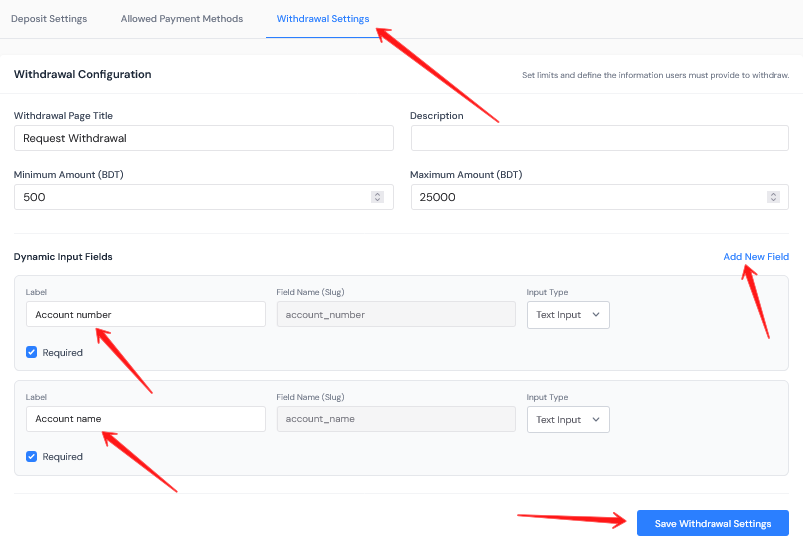
2.3 Withdrawal Settings

1. Go to Configuration → Withdrawal Settings
Withdrawal Settings
2. Set minimum/maximum withdrawal amounts
3. Configure withdrawal methods and fees
4. Save settings
3

Profile Setup

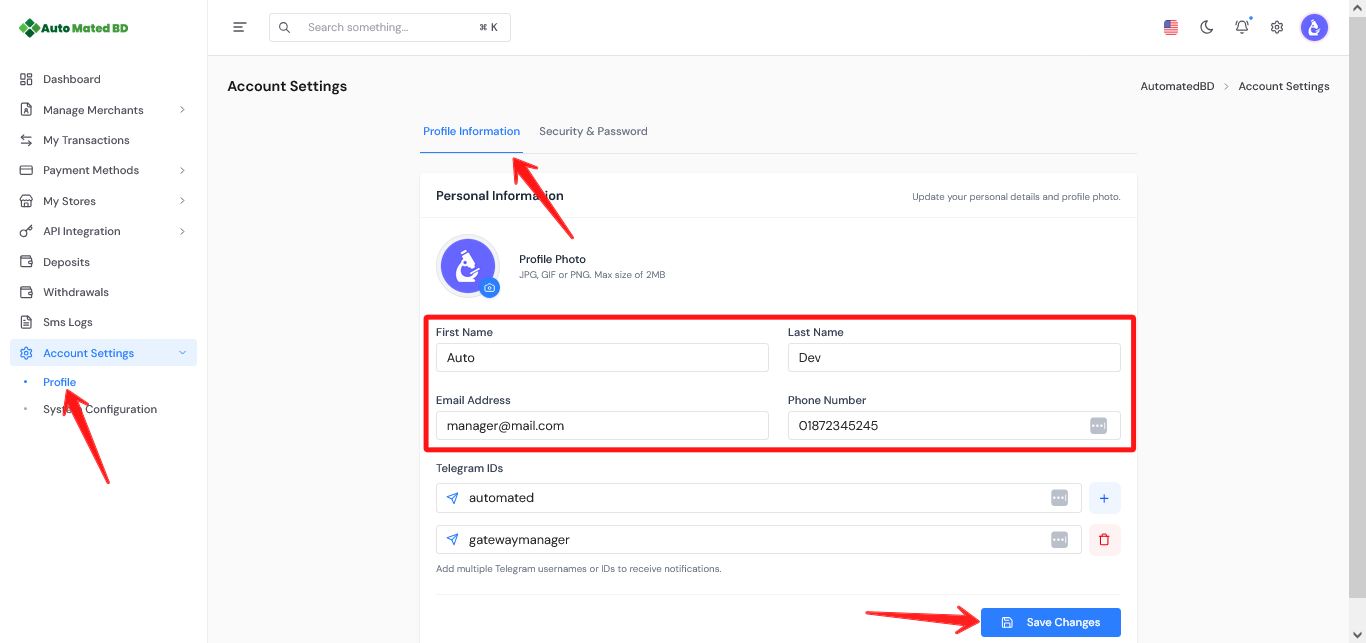
Basic Information

1. Go to Profile Settings
Profile Settings
2. Update your name, email, and phone
3. Upload a profile photo
4. Save changes

Telegram Ids

1. Find the Telegram section
2. Add your Telegram ID
3. Add your and support of your site telegramn ids so merchant can verify identity
4. Save settings
4

Manage Merchants

4.1 Add & Manage Merchants
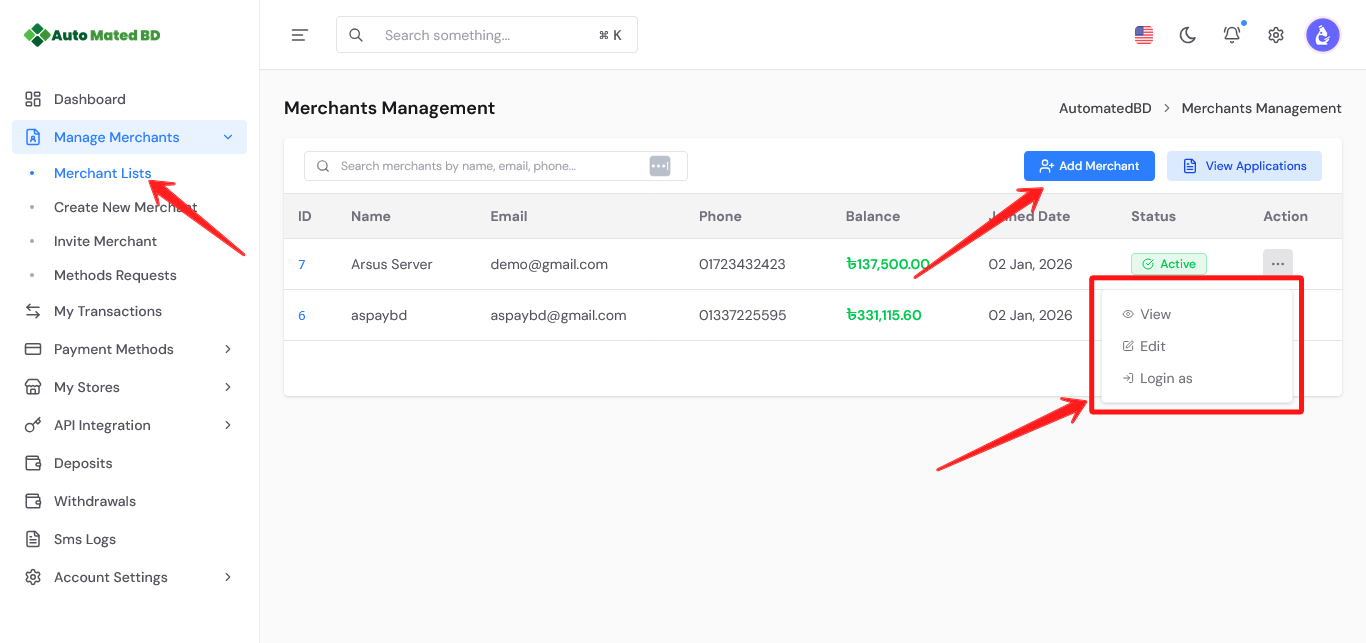
1. Go to Merchants from sidebar
Merchant List
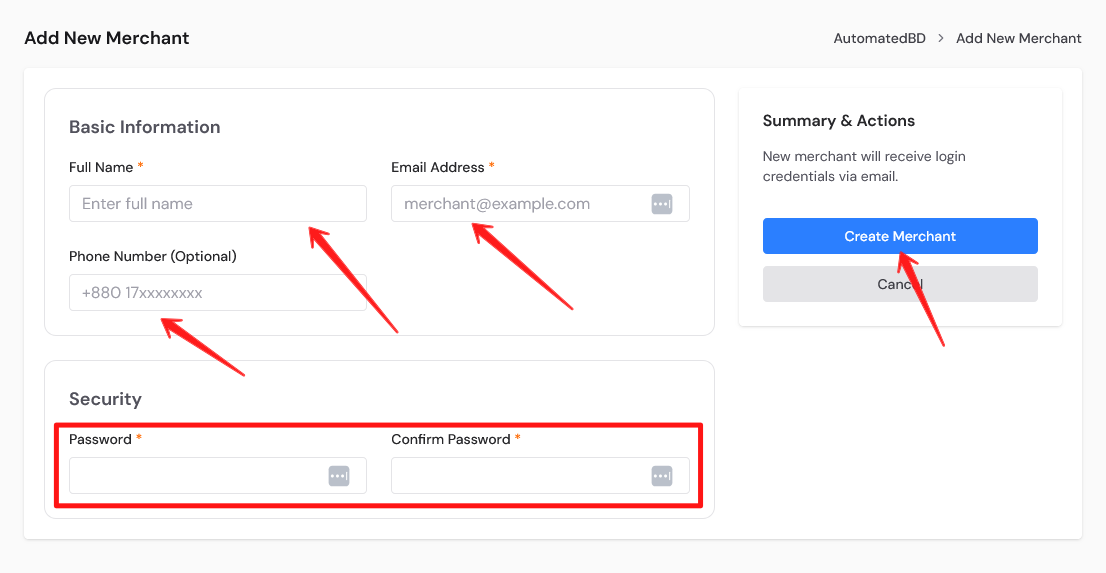
2. Click Add Merchant
Add Merchant
3. Fill in merchant details
4. Set payment permissions
5. Click Save

4.2 Invite Merchant via Link

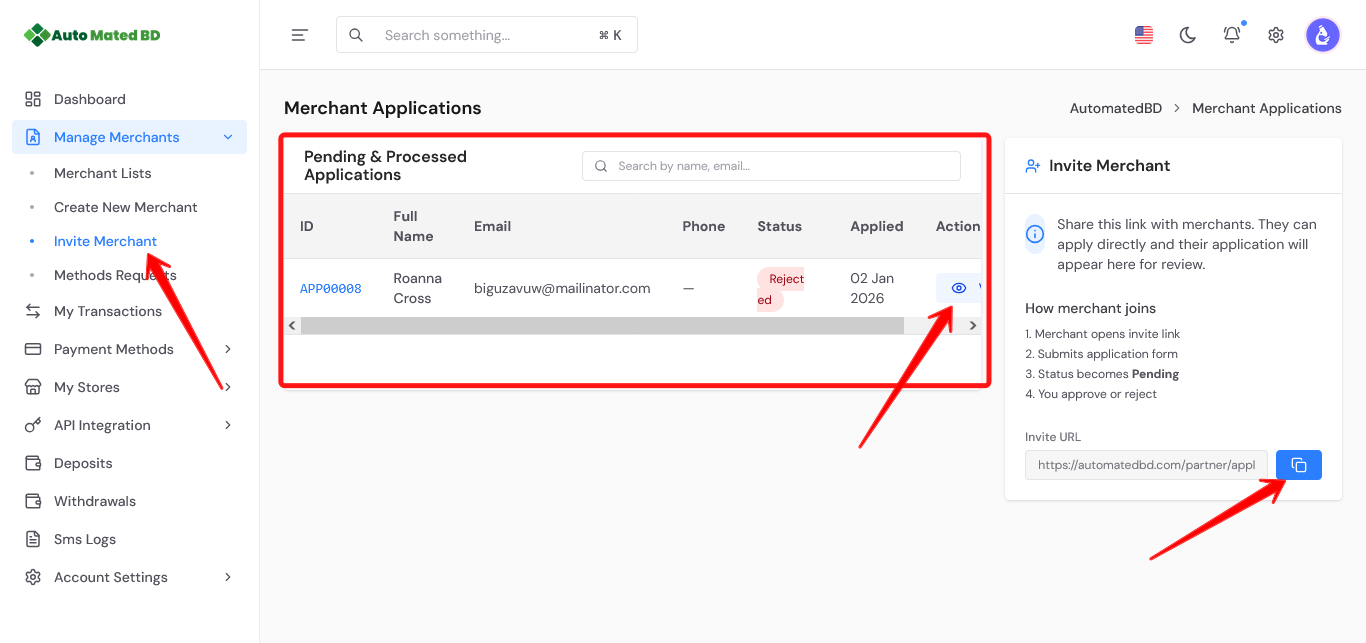
1. Go to Merchants → Invite
Merchant Invite
2. Copy your unique invite link
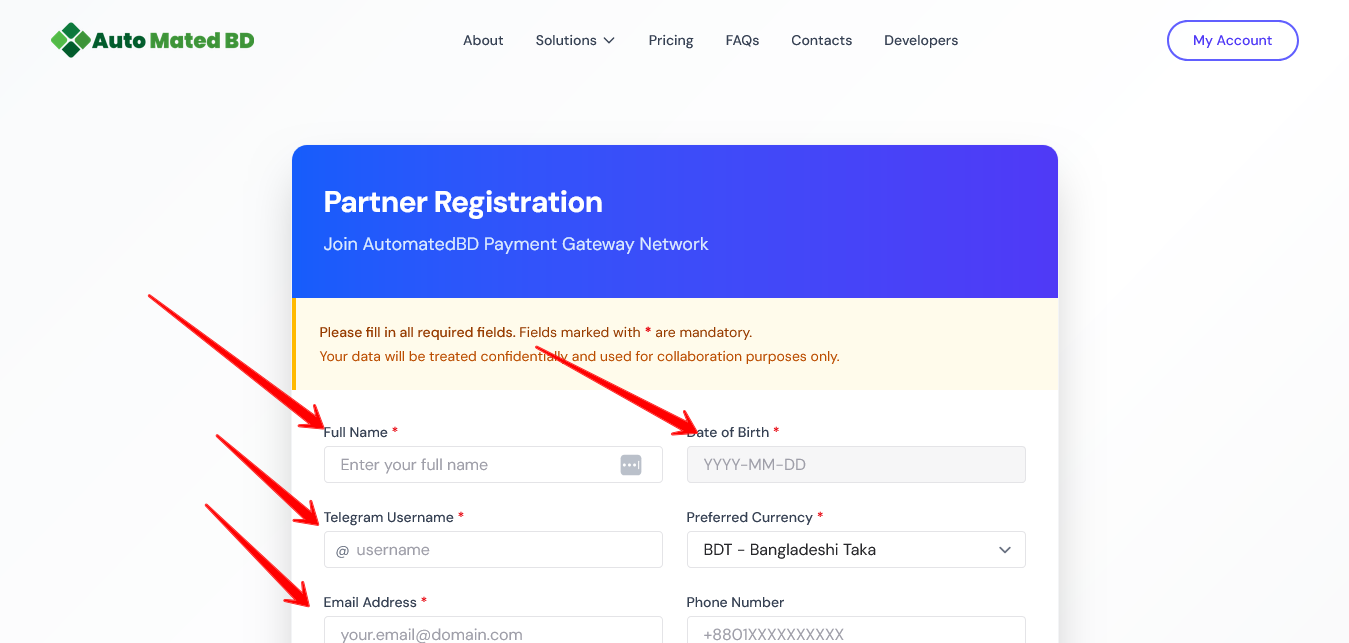
Invite Link
3. Share link with potential merchants
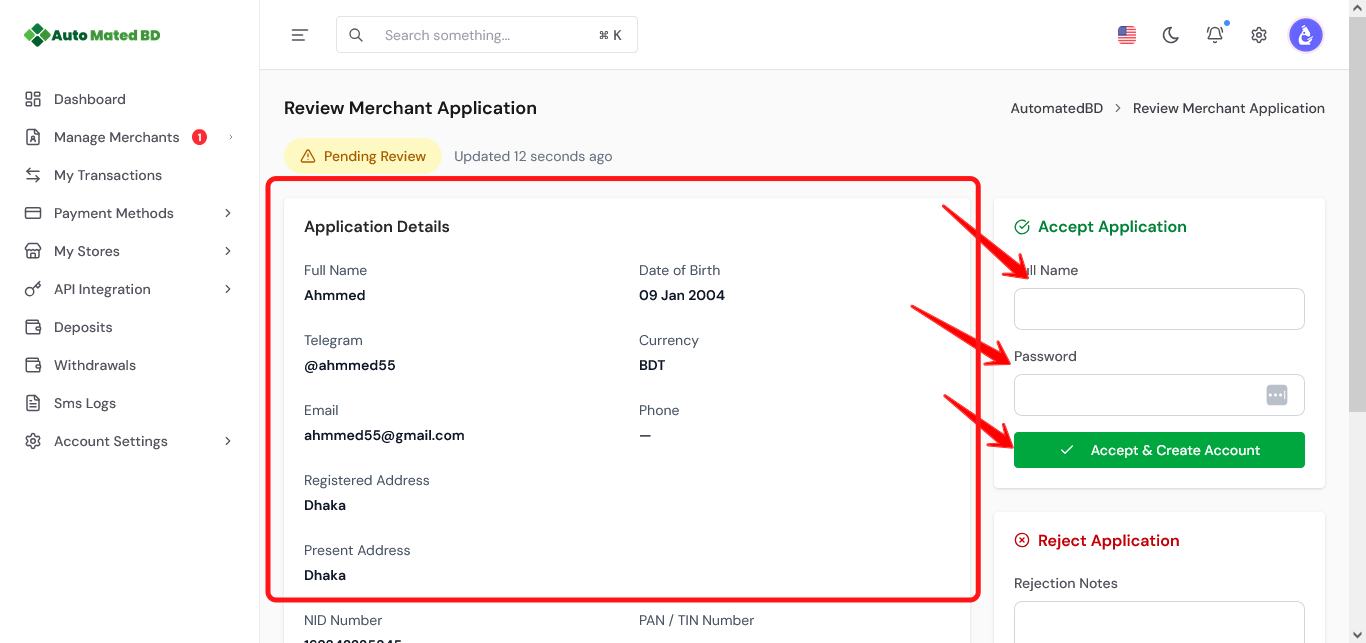
4. Review applications when they apply
Application Review
5. Approve or Reject

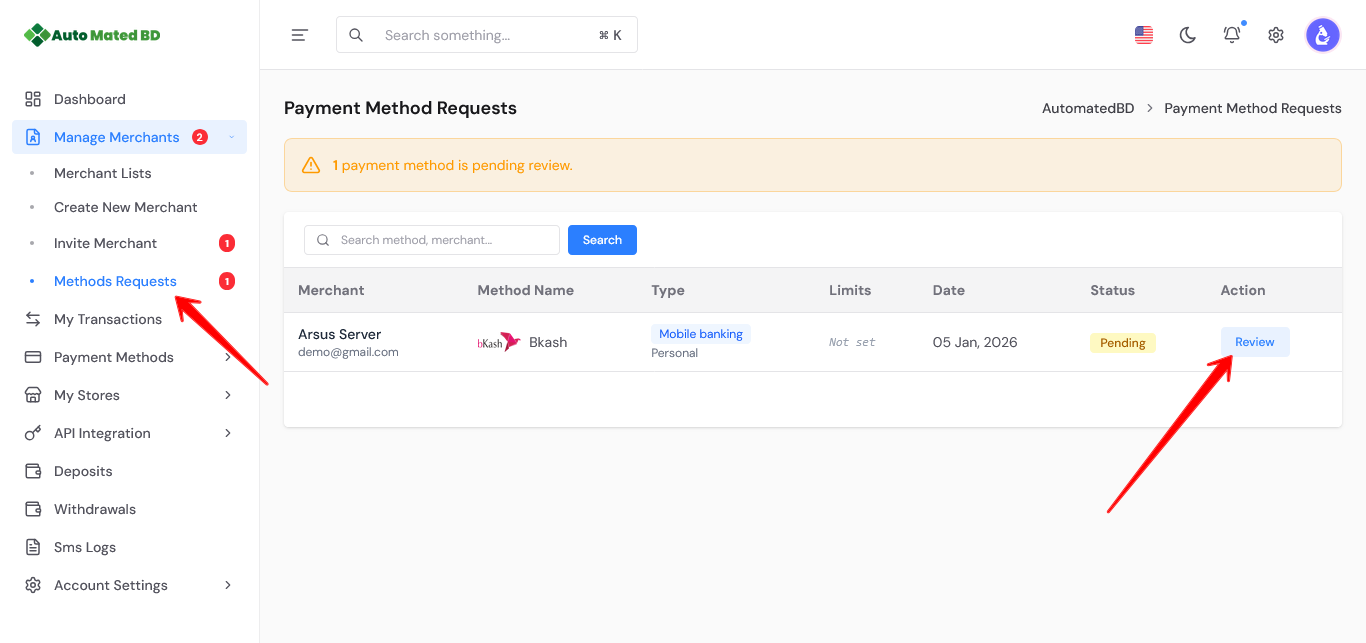
4.3 Payment Method Requests

1. Go to Method Requests
Method Requests
2. View pending requests from merchants
3. Review submitted details
4. Approve or Reject with reason
5

All Payment Methods

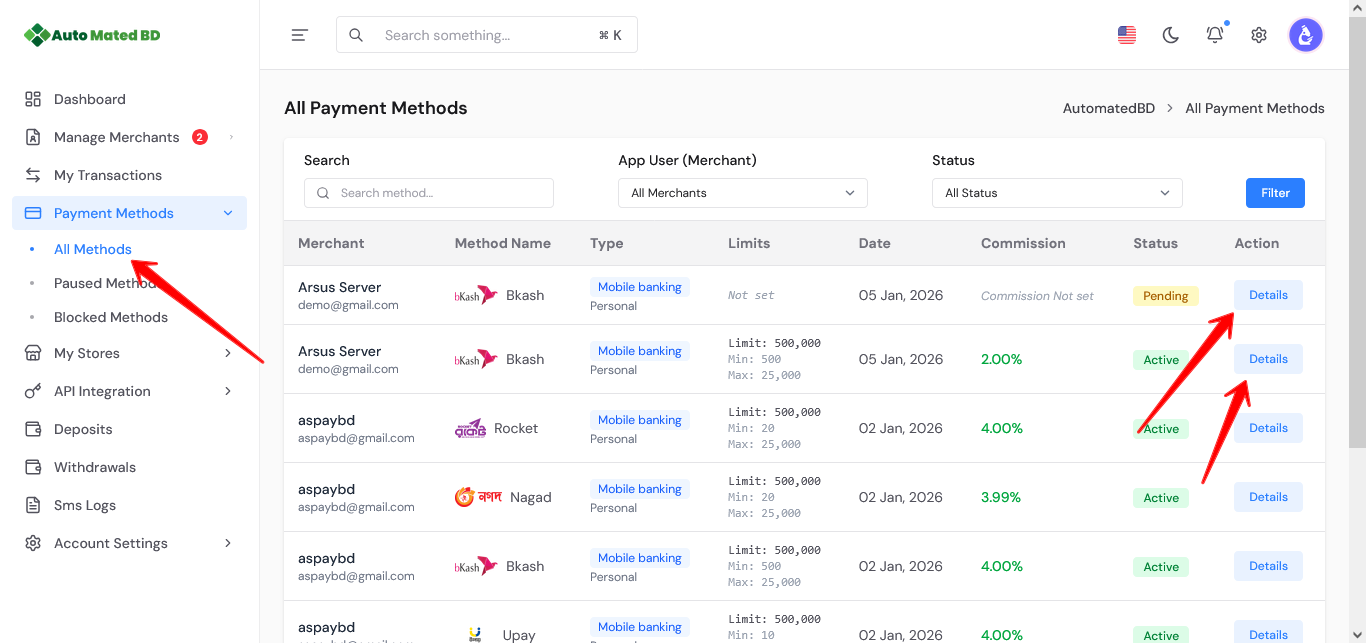
1. Go to Payment Methods
Payment Methods List
2. View all active and pending methods
3. Filter by merchant, type, or status
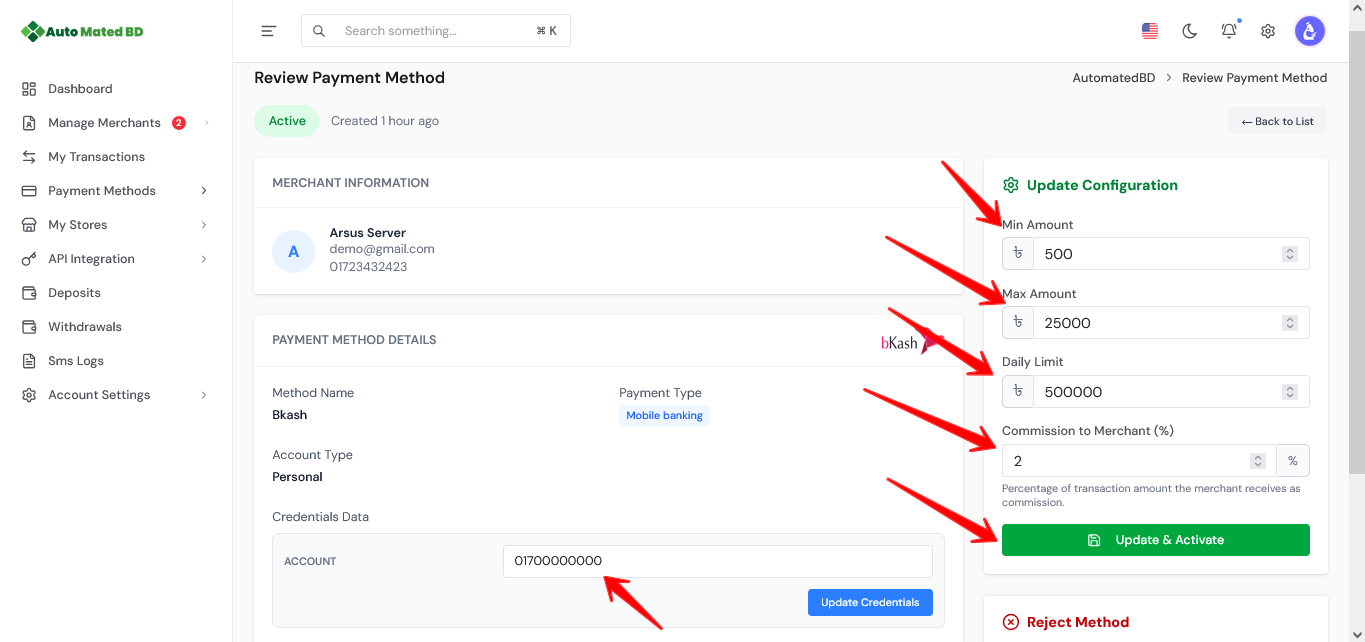
4. Click to edit any method
Payment Method Details
5. Enable/Disable methods as needed
6

My Stores

6.1 Create New Store

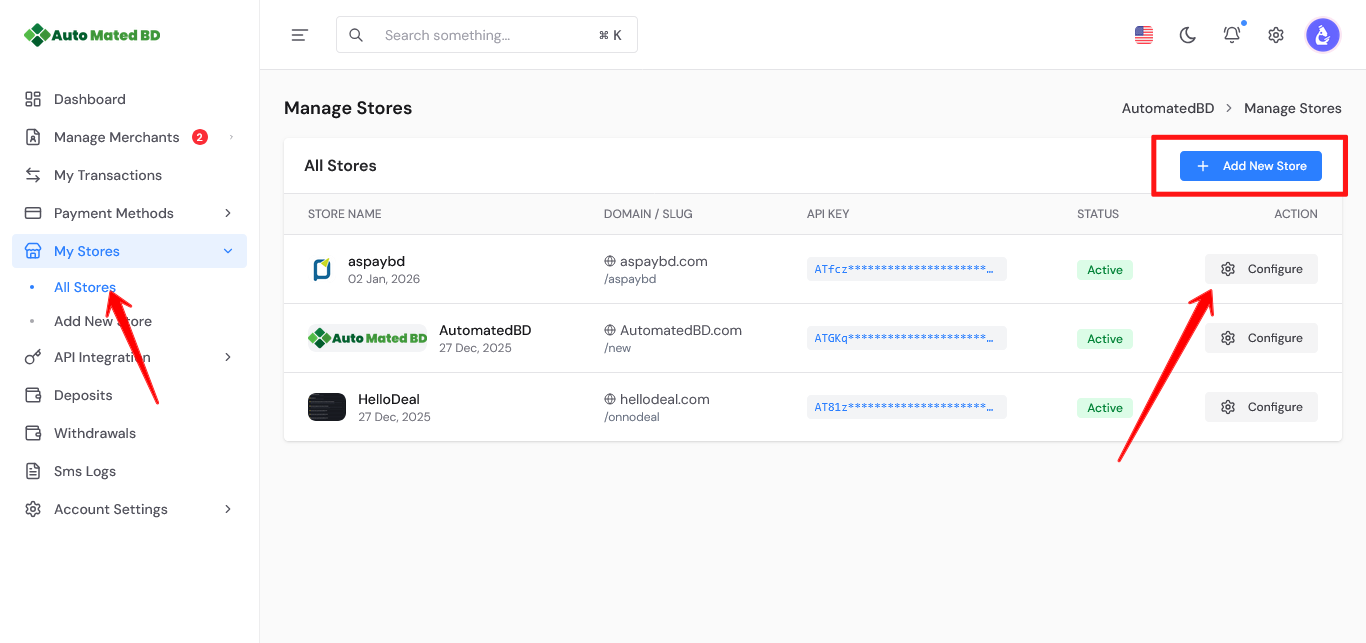
1. Go to Stores
Store List
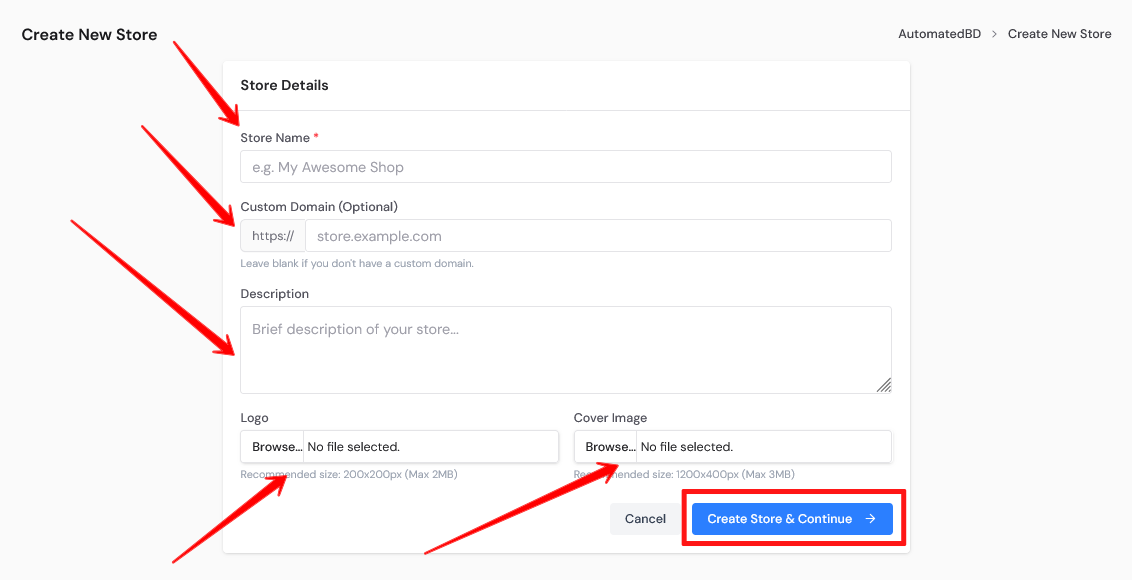
2. Click Create Store
Add Store
3. Enter store name and URL
4. Upload store logo
5. Click Save

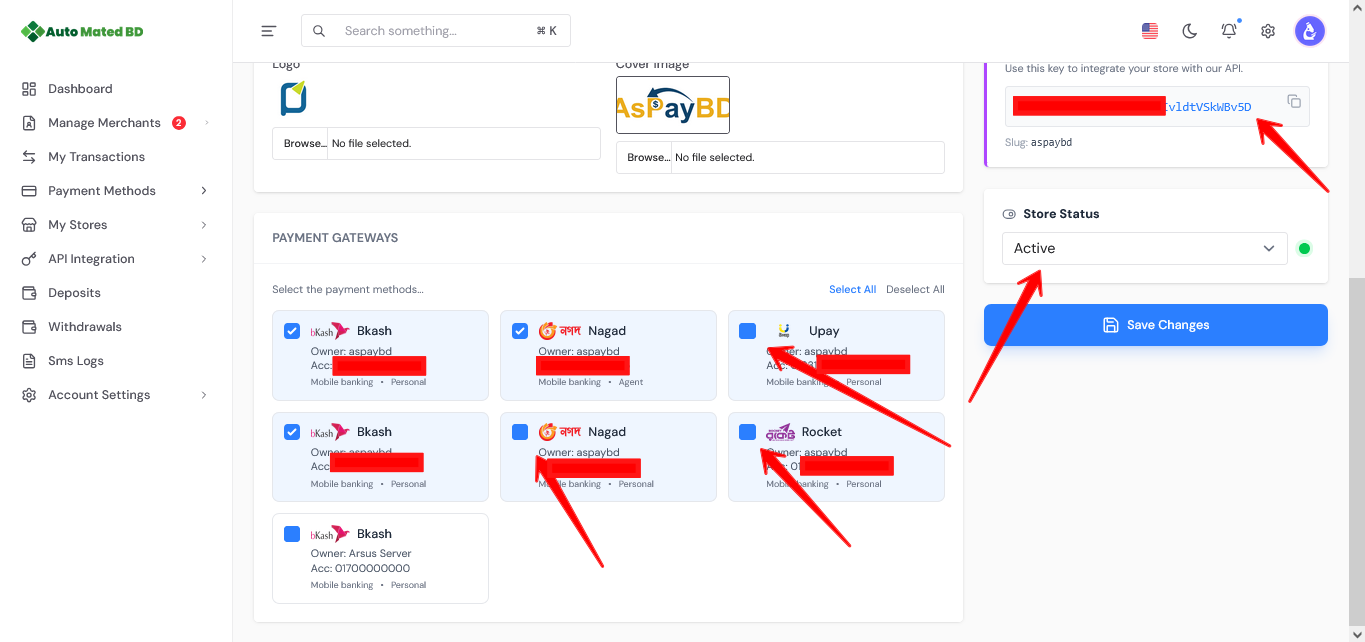
6.2 Configure Store

1. Click Edit on your store
Store Configuration
4. Select payment methods
5. Save settings

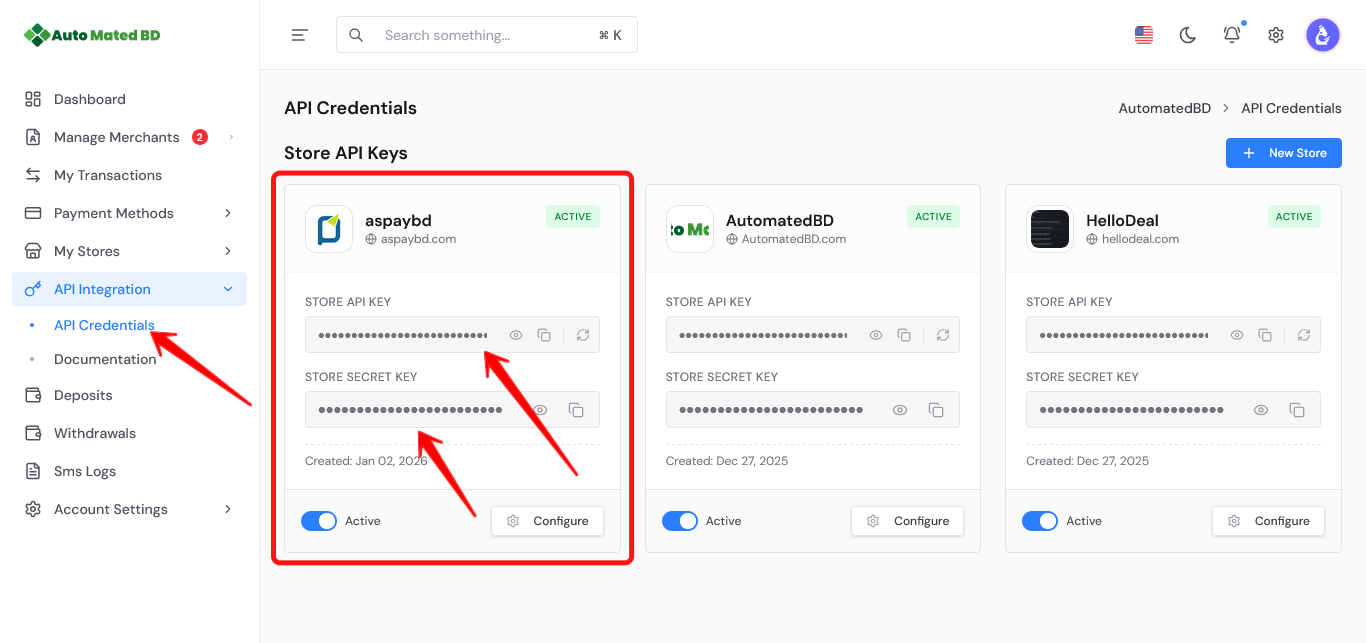
6.3 Get API Key

1. Go to API Credentials page
API Credentials
2. Click eye icon to reveal key
3. Click Copy to copy the key
4. Use Regenerate if compromised
7

API Integration

Get Credentials

1. Go to API Credentials
API Credentials
2. Find your store
3. Copy API Key and API Secret

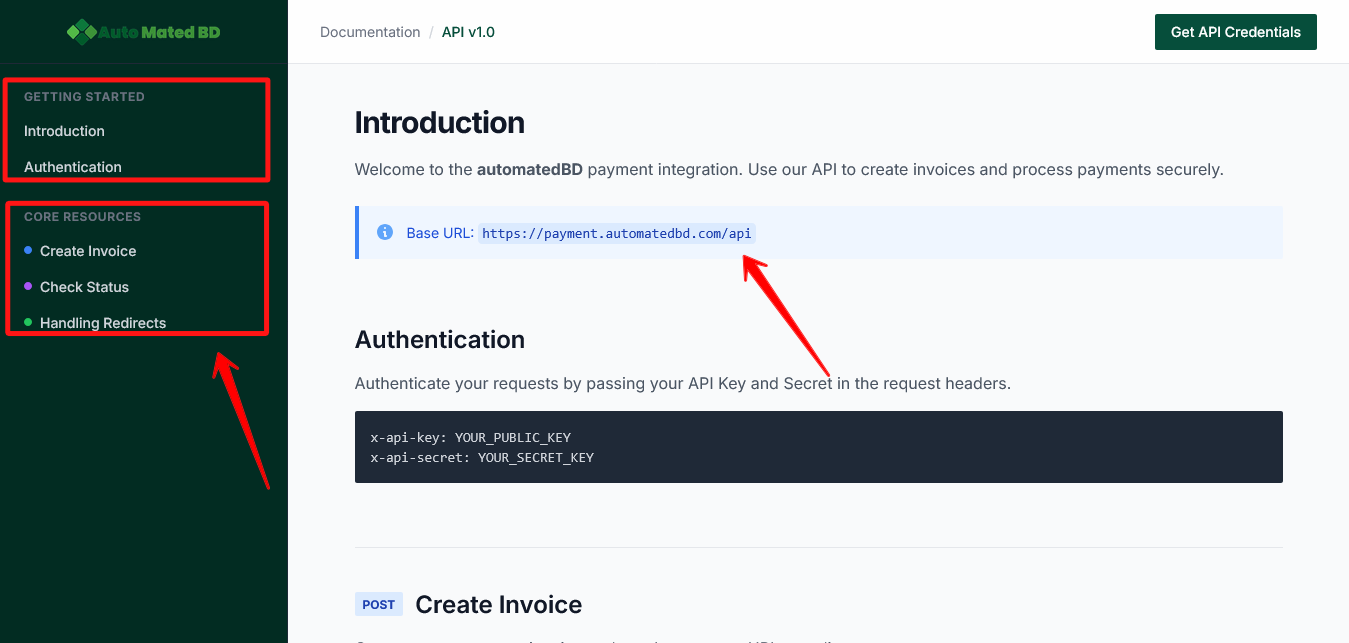
Documentation

1. Go to API → Documentation
API Documentation
2. Review endpoints
3. Follow integration examples

Security: Never expose your API Secret in client-side code.

8

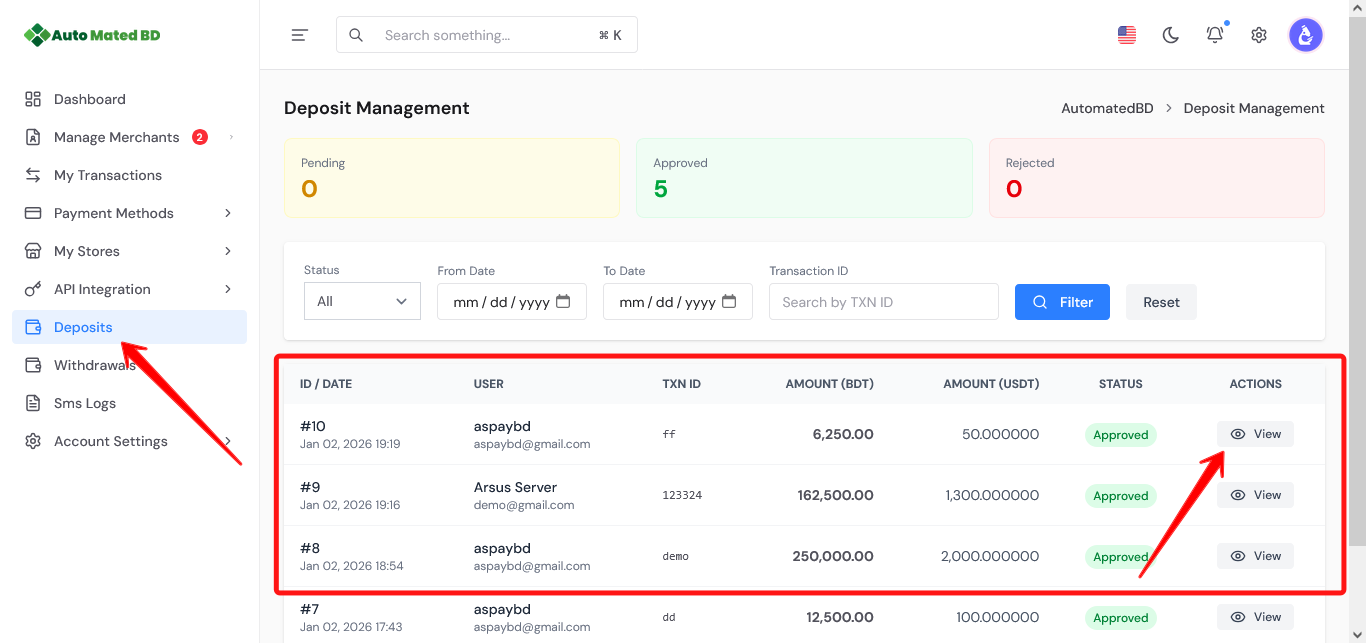
Deposit Management

1. Go to Deposits
Deposits
2. View pending deposit requests
3. Click to view details
4. Verify payment proof
5. Approve or Reject
9

Withdrawal Management

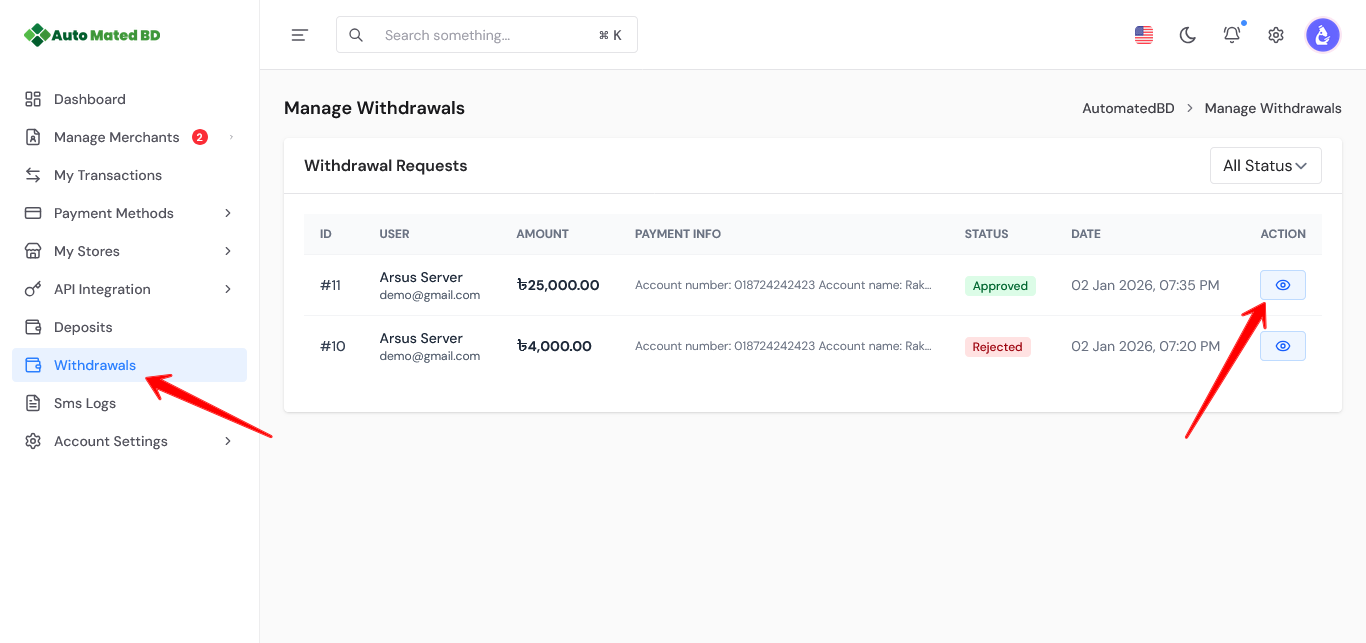
1. Go to Withdrawals
Withdrawals
2. View pending requests
3. Verify merchant details
4. Process payment to merchant
5. Mark as Completed or Rejected
10

SMS Logs

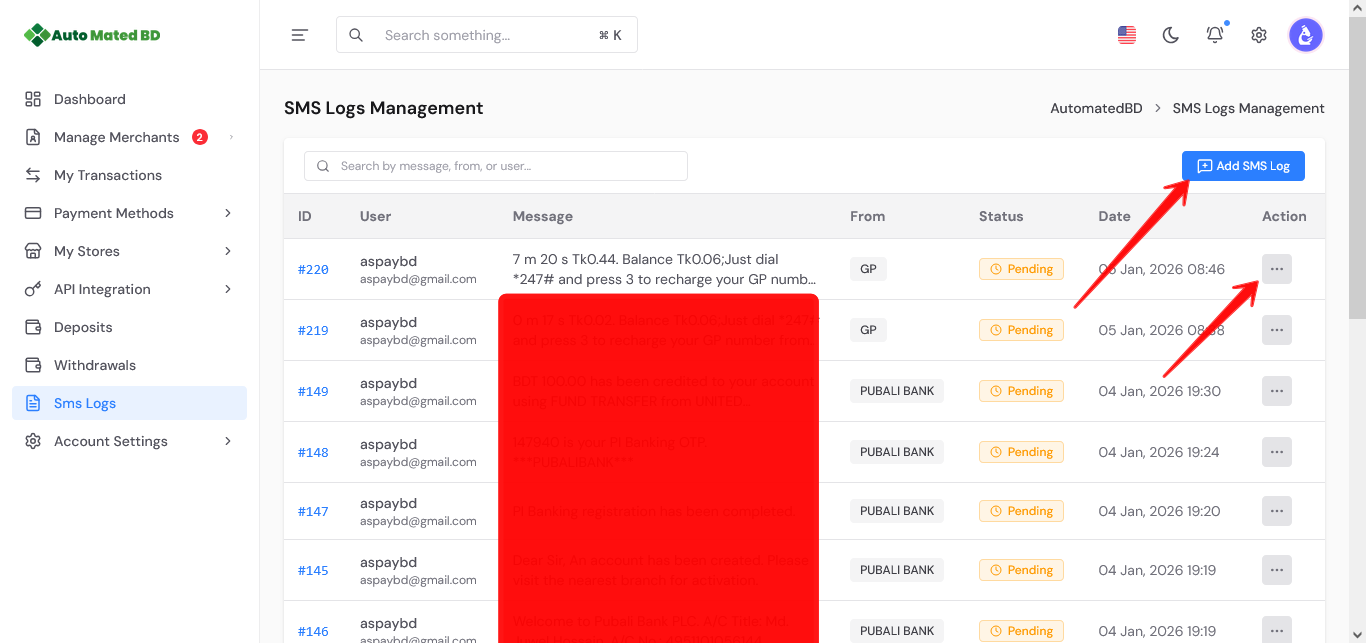
1. Go to SMS Logs
SMS Logs
2. View all received payment SMS
3. Filter by date, device, or merchant
4. Click to view full details
5. Match with transactions
11

Transactions

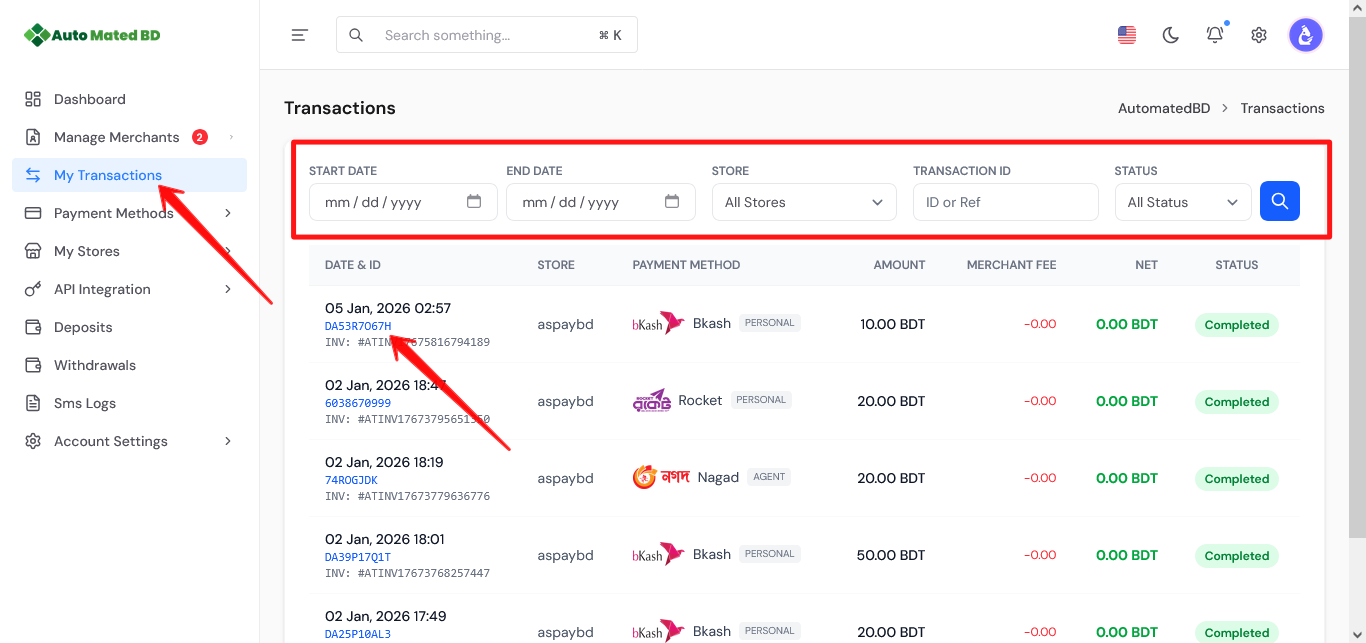
1. Go to Transactions
Transactions List
2. View all transactions with status
3. Filter by date, status, amount
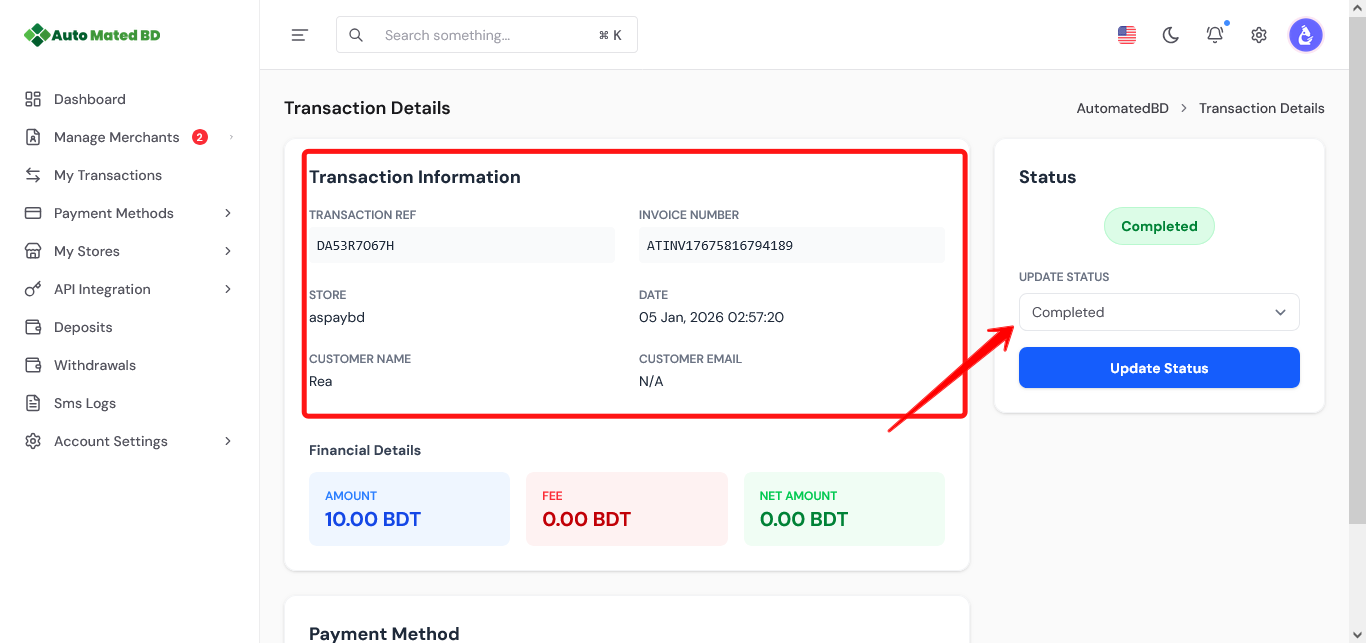
4. Click for full details
Transaction Details
5. Update status or add notes
12

Dashboard Overview

Your dashboard provides a complete overview:
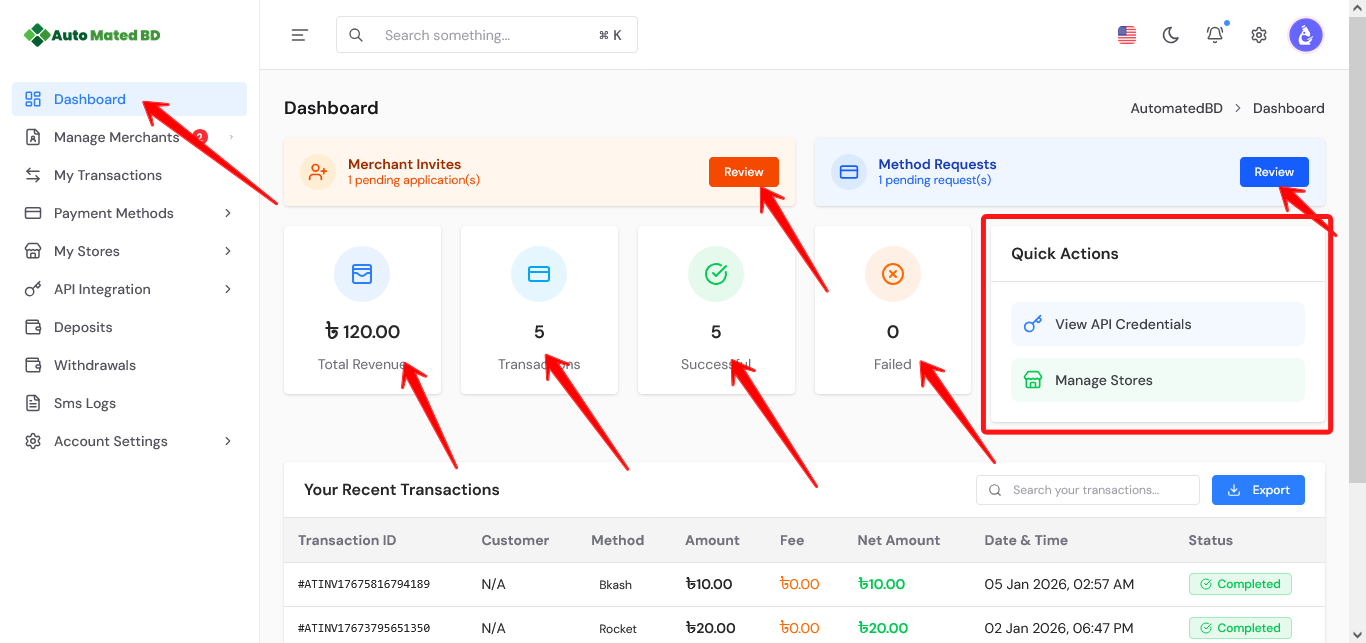
Total balance and earnings
Dashboard Overview
Recent transactions
Pending deposits and withdrawals
Active merchants and stores
Last 24 hours stats

You're All Set!

You now know how to manage your payment gateway system.